 TapCard
 visual guide
A quick picture tour of TapCard. Screens shown are from the iPhone app; Android looks the same. More help is on the How it works and Support pages.
Watch: a restaurant with TapCard
A restaurant sets up its card, prints the QR code for the window, and a customer scans it, books a table and claims a special offer.
1. Make your card in seconds
The first screen asks What is the card for? Choose A business or Just me. For a business, start typing its name and TapCard offers to find it and fills in its address, phone and website. Tap your business in the list and the card is built straight away: it reads your website to add your logo, booking and menu links, opening hours and social profiles. For Just me, type your name (TapCard looks you up in Contacts as you type, and lets you combine entries and choose which number, email and address show, or scan a paper business card), then choose Personal or Work and add your job and phone. There is no account to make and no permission screens first. Under a business card, Finish setting up shows one step at a time: share your card, verify your business, add booking links, send your first offer, or set up several locations. Skip this step or Add later puts a step off.
2. Fill in what your card is missing
If your business card has no phone number, opening hours, address, website, email or social profiles, a banner on My Cards says We found details for your business. Tap Review to see what TapCard found from Apple Maps (iPhone), public business listings and your own website: phone, address, opening hours, a Book a room or menu link, and social profiles. You can change a detail before you tap Add, or Skip it, or choose Don't suggest this for this card. Nothing is added until you tap Add, a skipped detail is never offered again, and TapCard looks again at most once a month. Google is never asked, and nothing is stored on our server.
3. Scan a paper business card
On the Just me screen, tap Scan a paper business card and hold the card in front of the camera. TapCard reads it on your phone and suggests your name, job, company, phone, email and website for you to check. The photo is never uploaded.
4. Share your card
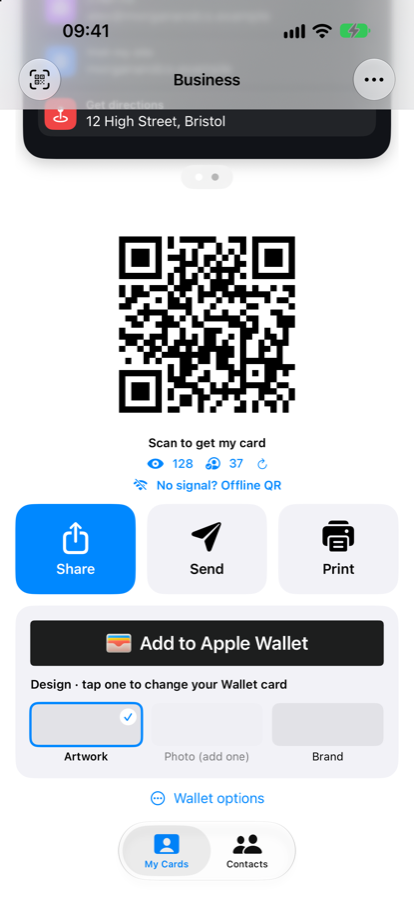
Your QR code is the quickest way. Anyone scans it with their camera and saves you, with no app needed (on an iPhone without TapCard it opens a quick preview, an App Clip, where they can save you, add you to Apple Wallet or share their details back). Under it, Share sends your link, Send picks people from your contacts, and QR sign (on business cards) makes a poster for your window or till, headed with your business name and "Scan to follow and receive news and offers". Choose Email me the sign and print it from a computer. Add your card to Apple Wallet or Google Wallet and choose a design: Brand (a business's own logo and colours, the first choice for businesses), Artwork or Photo.
5. Send them their own card
Open a contact you added, with a name or company and a phone, email or website, and tap Send card. Under the button is a switch, on by default: Also send them their own TapCard, made from these details. Your message then carries two links: your card, and a second one that opens a ready-made TapCard for them, built from what you hold (a business card with their company's logo, their name and job title, phone, email, website and address). They check it and tap to keep it. It is kept under a secret link for 30 days, only you can make one, and you can switch it off for any send. If they already have TapCard the link opens it; if the page says Your card is ready, tap Open your card in the app.
6. Choose which card you send from
If you have more than one card, a Send from box appears above Send card on a contact's page. Pick which of your cards goes to that person, for example your Business card to a customer and your Personal card to a friend. The ready-made card you make for them uses the card you picked, and Pending, Opened and Accepted follow that card. Choose Make this my main card in the same box and that card opens first on My Cards and is the one Send card uses unless you pick another.
7. Emailing someone their card
For a contact with an email address but no phone number, Send card writes an email in your own mail app instead of a text. On iPhone it has a picture of their ready-made card and one button, Keep my TapCard; on Android it has one link to the same card. If they do not have TapCard, the link takes them to get the free app and their card is ready when they open it. If they already have TapCard, opening it shows a preview of the card and asks Keep this card? with Keep this card and No thanks, so nothing is added unless they choose to. The email goes from your own address, so TapCard sends nothing on your behalf, and the page behind the link offers your own card too.
8. Get their details back
Anyone who opens your card on the web, or scans it with an iPhone's App Clip, can tap Share your details with you, type their name and a phone number or email, and send. It needs no app and no sign-up. They appear in your Contacts marked New, and you get a notification if your phone has them switched on. If you would rather not take details this way, open Edit card and switch off Let people share their details with me. When someone gets TapCard after saving your card, the app asks Send your card to you? as soon as they have made their own card, and one tap sends it, with nothing to buy. You find it under Contacts, filed under your card. The QR code is larger and easier to scan in poor light; if there is no signal at all, show your Offline QR.
9. No signal? Use Offline QR
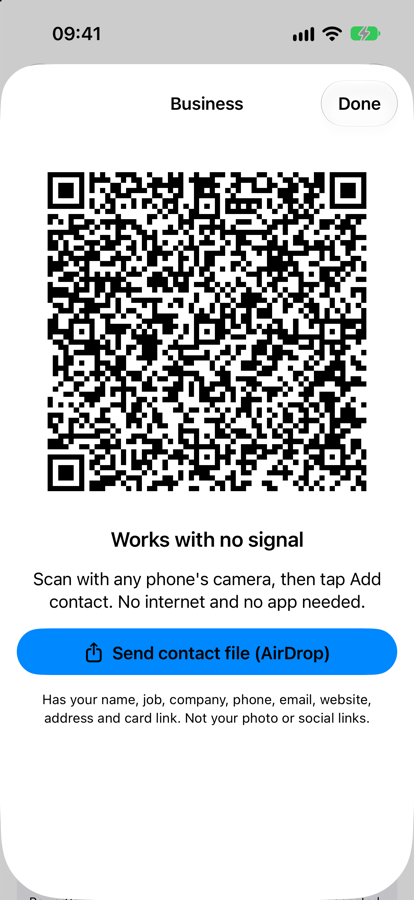
Tap No signal? Offline QR under your code. This code holds your contact details themselves, so it works with no internet and no app on their phone. You can also send your contact file by AirDrop.
10. Your contacts at a glance
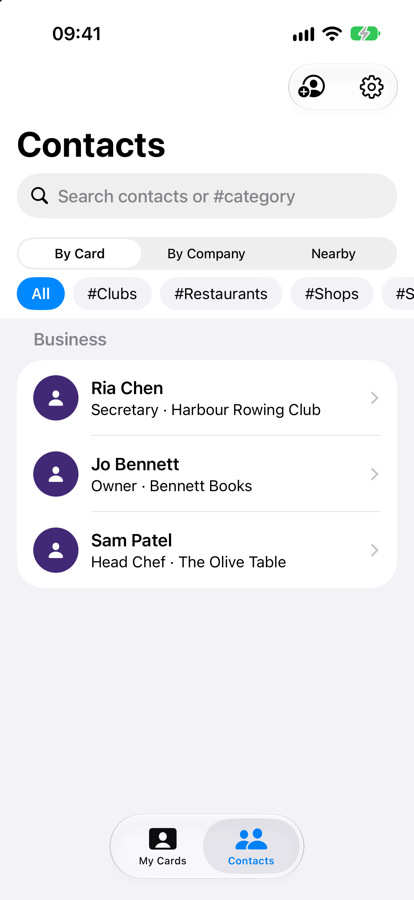
The Contacts list shows just each person's name, so it stays tidy. Tap a name to see everything. To act without opening them, swipe a contact left on iPhone, or press and hold on Android, and tap Call, WhatsApp or Email. Only the actions that fit are shown. When someone has a mobile number, TapCard adds a WhatsApp row for you, even if their first number is a landline. Press and hold a phone number, email, website or address to copy it.
11. Find people fast with categories
Tag contacts your own way, like #Restaurants, #Shops or #Clubs. A contact can have more than one. Filter by tapping a chip, or type #clubs in the search box. Categories stay on your phone.
12. Add your own details
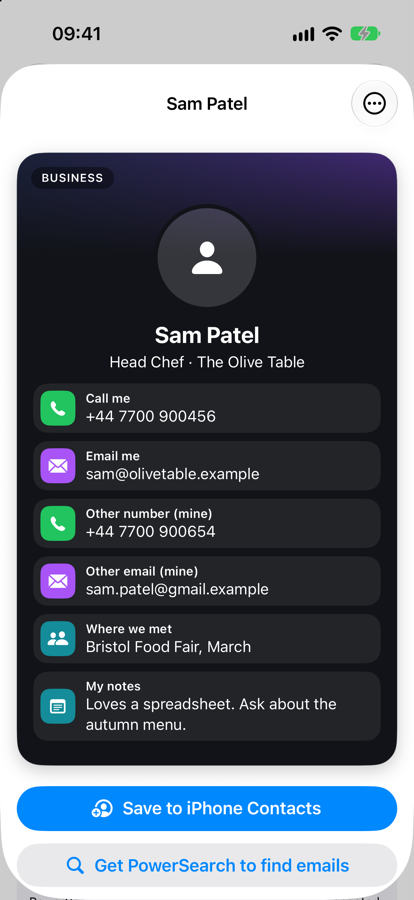
Open someone's card and tap My details to add where you met, a photo, another phone or email, and notes. They appear as extra rows on their card, and you can tap to call or email. This works for people you scanned and for people you picked from your phone contacts, including contacts that only have a name and a company: add a phone number or email later if you want to send them your card. Tap Reposition photo to drag and zoom a photo you added. New phones, emails and photos are added to their phone contact too. If they stop sharing, your details are kept.
13. Bookings, shop and more for your business
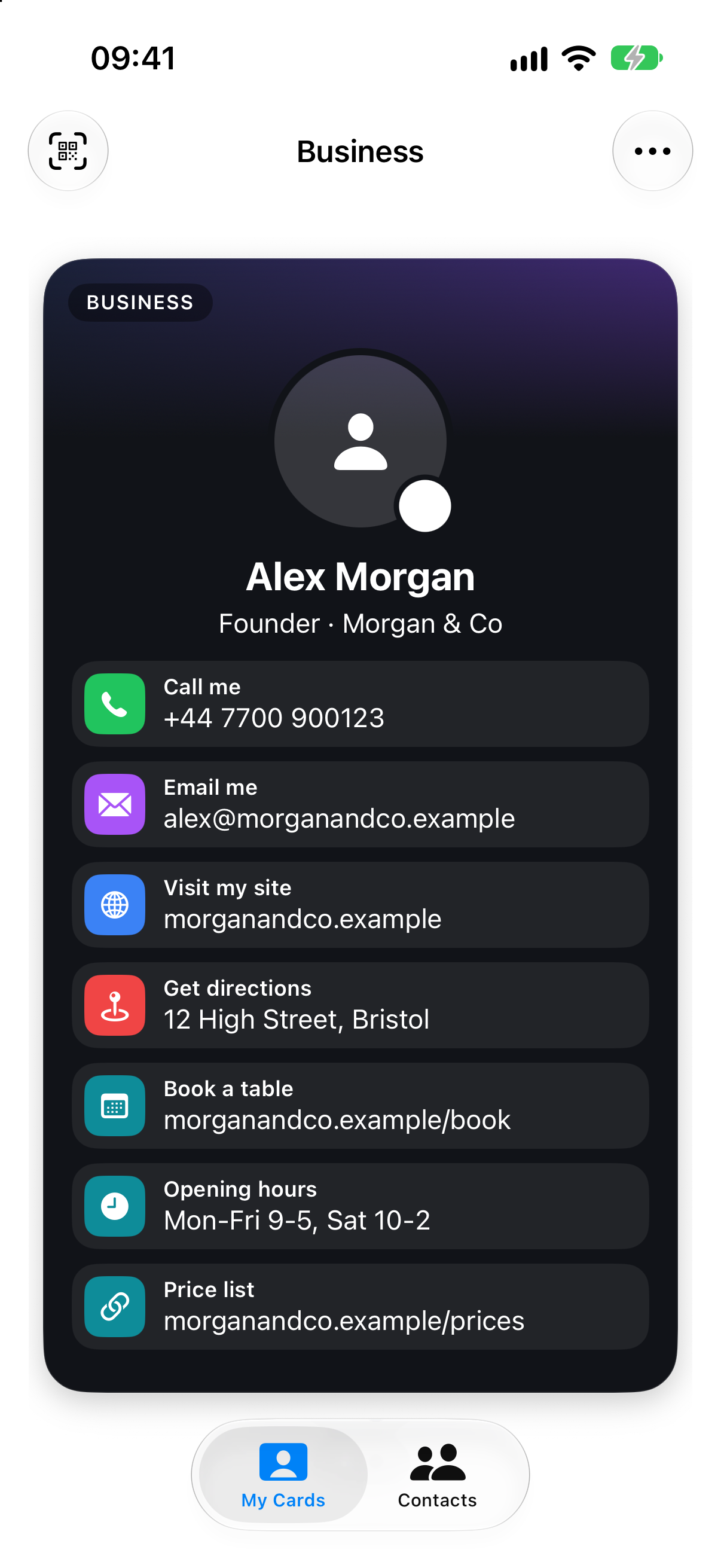
On a Business card, tap Edit and find Bookings & links. Add Book a table, Book a room, Book an appointment, View our menu, Order online, Shop online, Opening hours or Leave a review, or make your own with any label, like Price list. Not sure where to start? Tap Start from my type of business and pick restaurant, hotel, shop, salon or trades. If you enter your website, TapCard offers the booking, menu and review links it finds there, and your opening hours when your site publishes them (for a chain, the hours of the branch at your card's address). Each one shows as a tappable row on your card and on your web card. With no online booking, the phone row says Call to book. The Personal card does not have them.
14. Find details for a contact
On a contact you added that has a company name or a website, My details has a Find details button. Tap it and TapCard looks the company up (Apple Maps on iPhone, public business listings and the company's own website) and offers its phone number, address, opening hours, links and social profiles. Change a detail if you like, then tap Add or Skip. The company's phone and email are added as extra ones, so the person's own number is never replaced. Only the company name or website is sent, never the person's name, and you choose when to look.
15. Special offers: for your business
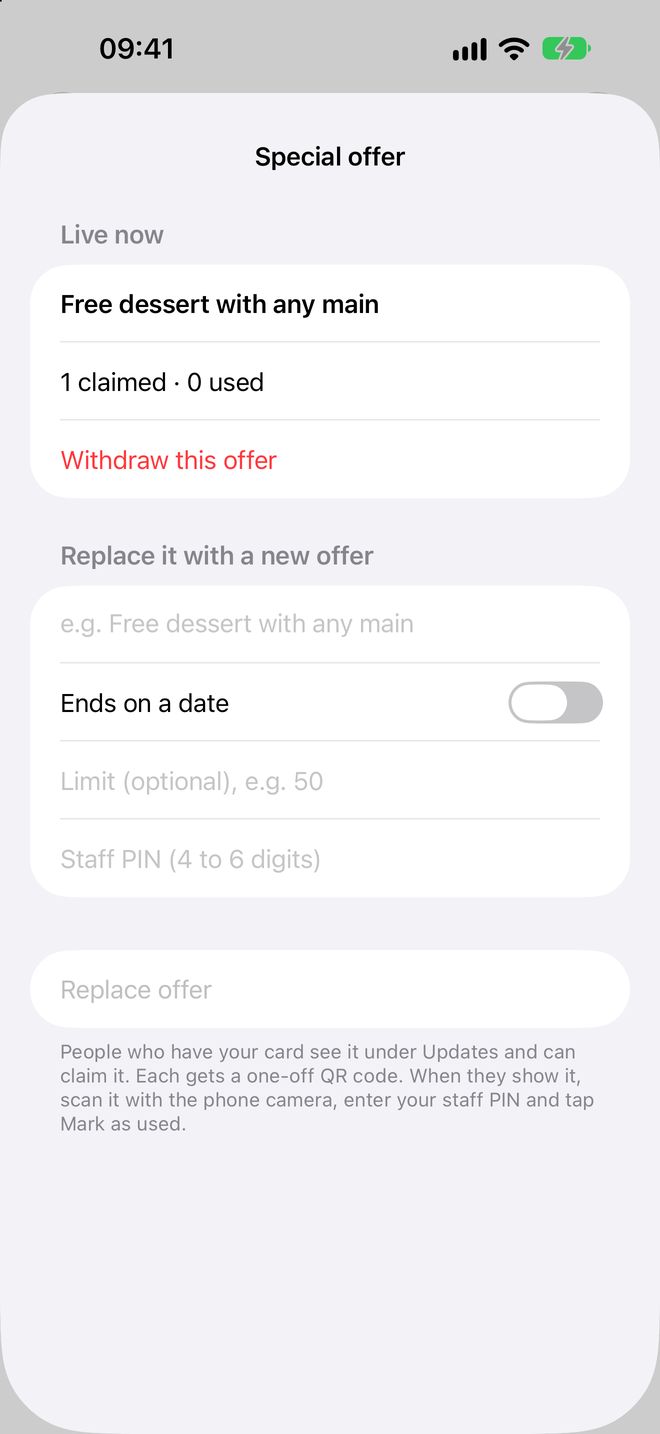
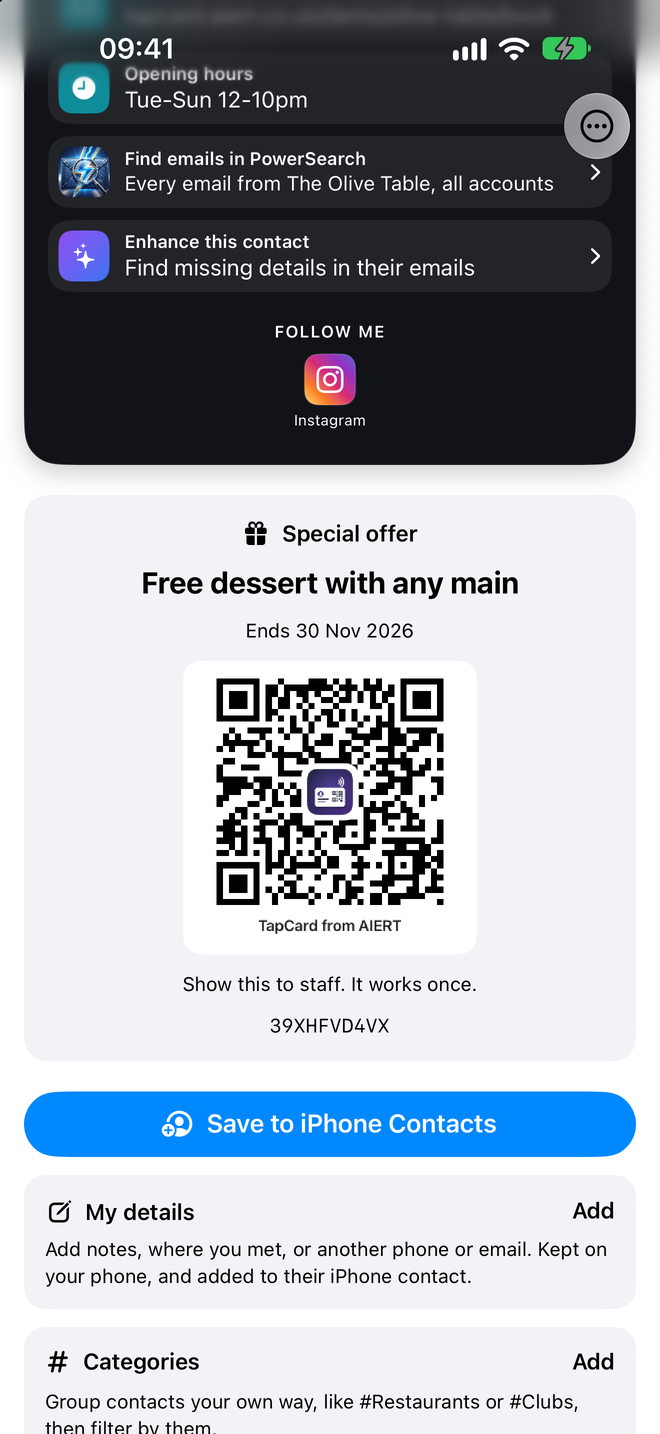
On your Business card in My Cards, find Promote your business and tap Create an offer. Promote is a subscription for businesses: 3 months free, then £49.99 a year or £9.99 a month, and it includes sharing your own card. Write the offer (for example Free dessert with any main), choose how long it lasts and how many people can claim it, and set a staff PIN of 4 to 6 digits. Tap Post offer. Everyone who has your card sees it, with a green Offer badge on your name, and people who follow you get a notification. You can see how many claimed it, how many used it and how many people follow you, post a news line, replace the offer, or withdraw it at any time. You can manage or cancel Promote from the same box. One Promote subscription covers one card, and a business gets its 3 free months once, whichever phone or account starts it. If a second phone shows that Promote is on another card, use Move Promote to this card (allowed once every 30 days), or email enquiries@aiert.co.uk about TapCard for Business for several locations. A business has one live offer at a time: posting a new one replaces the old one, and codes already claimed on the old offer stop working. To confirm a customer's code, any member of staff scans their QR code with a phone camera, types your staff PIN and taps Mark as used. No app or login is needed. On a till or computer with no camera, go to tapcard.aiert.co.uk/redeem and type the code under the QR code.
16. Special offers: if you get one
When a business you have saved posts an offer, you see an Offer badge on their contact. Open their card and tap Claim this offer. You get your own one-off QR code. Show it to the staff when you pay. They scan it with their phone camera (or type the code at tapcard.aiert.co.uk/redeem on a till with no camera), enter their PIN, and it is marked as used. It works once, then shows Used. When you save a business, tap Save and follow to keep its card and get a notification when it posts a new offer, news or a menu change (at most two a week). Just save keeps only the contact. Nothing is switched on unless you choose Save and follow, and you can turn it off from the ⋯ menu at the top of their card. Claiming is free and needs no sign-up, and the business only sees how many people claimed, not who. If you follow a business it sees one number, how many people follow it, never who.
17. The Offers tab: every offer in one place
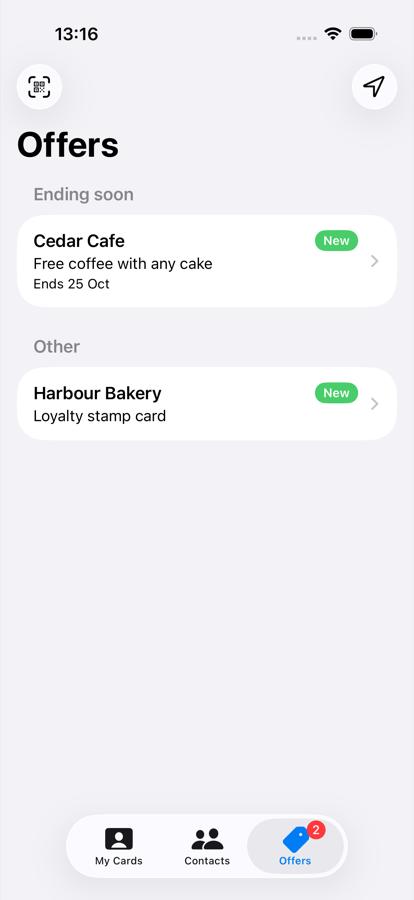
Next to My Cards and Contacts, the Offers tab lists every business you have saved that has an offer right now, grouped by type of business (your own category if you gave one, otherwise Restaurants, Hotels, Shops, Appointments or Other). Each offer is marked New, Claimed or Used, and a stamp card shows its progress, such as 2 of 5, or Reward ready. A number on the tab counts offers you have not looked at yet. Offers finishing within three days are listed first under Ending soon. Pull down to refresh. The camera button at the top left scans a business's QR code, as it does on Contacts.
18. Show it at the till
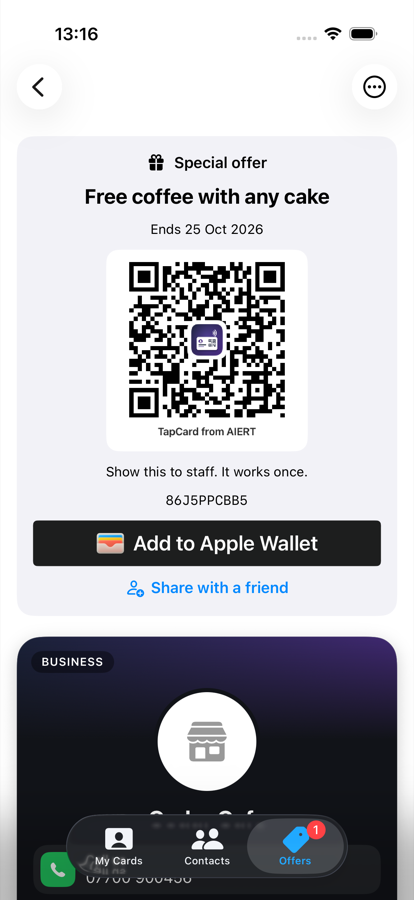
On any offer you have claimed, tap Show at till in the Offers list and the QR code (or your stamp card) opens straight away, with no need to find the contact first. Under it, Add to Apple Wallet or Add to Google Wallet puts the offer or stamp card in your phone's Wallet. A Wallet pass shows the stamps you had when you added it, so open the app to see the latest count. Share with a friend sends a link to the business's page, with the offer, for them to claim. When a business has a review link, the card asks Enjoyed it? after you have used an offer, with Leave a review. No thanks hides it.
19. Offers near you
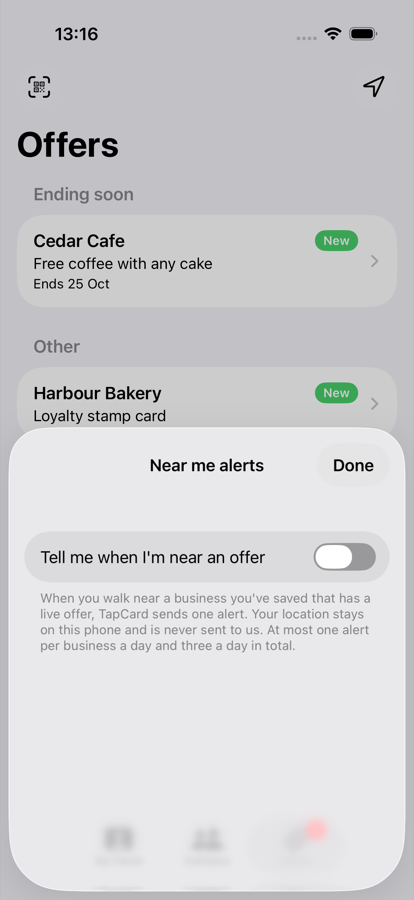
On iPhone, the location button at the top right of the Offers tab has a switch, Tell me when I'm near an offer. It is off until you turn it on, and it needs location set to Always so it can work in the background. When you are close to a business you have saved that has a live offer, you get one notification. There is at most one a day for each business and three a day in all. Tap it to open the business. Your location stays on your phone and is never sent to us. On Android, the Offers tab can show a Near you list, worked out only while the app is open, with no background tracking. It asks for your location the first time you tap Allow location.
20. Remind me to follow up
Open a contact, tap My details, and use Remind me to follow up. Choose Tomorrow, In 3 days, In a week, In a month or Pick a date. At that time you get a notification, and tapping it opens the contact. Change or clear it any time. It works for people you scanned and for people you added from your phone's contacts. The reminder is stored on your phone only.
21. Stamp cards: buy 3, get one free
Instead of a one-off offer, a business can run a stamp card. When you post, choose Stamp card, pick how many stamps (3, 6 or any number up to 20) and write the reward in your own words, such as Free child's meal. Customers tap Get my stamp card and see their stamps fill up. Each visit, your staff scan the customer's QR code, type your PIN and add a stamp. You can set a minimum gap between stamps so one visit counts once. When the card is full, the customer shows it, you give the reward, and the card starts again. You can ask customers to get the TapCard app after their first stamp: the first stamp needs no install, and their stamps move with them into the app.
22. Claiming without the app
Anyone who scans a business's QR code sees its card, latest news and current offer on a web page. They can claim a one-off offer or start a stamp card there, with nothing to install. To follow the business and be told about new offers and news they need the free TapCard app, and the page invites them to get it.
23. News with a Read more link
A business can post a short news line (up to 140 characters) with an optional link to the full story: a Facebook or Instagram post, or a page on its website. Copy a post and tap Paste a post I copied (on Android you can also Share a post to TapCard) and the link is lifted out of the text into the Link to the post box; customers then get a See the post button on the news in the app and a Read more link on the card page. Followers get a notification, and tapping it opens the business's card with the news and button. The card page keeps an Earlier news list. You can post one news item every 6 hours.
24. Find a business and follow it
In Contacts, tap + then Find a business, type a name and town, and pick it from the list. TapCard saves its phone number, address, website, opening hours and links. If the business is already on TapCard you can open its card and tap Follow to receive its offers and news. Scanning a business's QR code shows its card with Save and follow and Just save.
25. News from AIERT (optional)
Once, on My Cards, TapCard says Thank you for using TapCard and offers to keep you posted. Follow AIERT sends news as notifications like any business you follow (a couple a month at most). Get updates asks for your email address, sends one confirmation email, and only if you click the link do we email you occasional news, with a link to stop. No thanks ends it for good. Nothing is switched on unless you choose it, and we never use the email on your own card for this.
26. Your followers
Tap the followers count under your QR code to open the Followers screen. It shows how many people follow your card and how many of them a news notification reaches (those with News switched on and notifications allowed on their phone). Followers are anonymous, so there is no list of names. On a business card, tap Message your followers to send a short news line to all of them (this is posting news, part of TapCard Promote or a TapCard for Business plan). People who also left their details through your card, using Share your details on the card page or by sending you theirs, are kept in the Followers view in the Contacts tab, away from your main contacts. Swipe right on iPhone, or tap Move to Contacts on Android, to keep one in Contacts. Adding notes, a category or a reminder, or sending them your card, moves them there for you.
27. Proving a business is yours
Verifying is optional for now: you can post offers and news without it, and it may be needed again later. A verified card shows a tick that tells people the business is real. To verify, open Promote on your card and choose Verify. Option 1 is an email code: enter an address on your own website's domain (a Gmail or Outlook address will not do), tap Email me a code and type in the 6 digits. Option 2 is your website: add the one line we give you to your site and tap Check. Verified cards show a tick. Cards that belong to a TapCard for Business company count as verified already. Only one card can be verified for each business website; if someone else made a card for your business, report it and verify yours.
28. Safe by design
Followers are anonymous: a business sees how many follow it, never who. You choose what you hear, and no business can send you more than two notifications a week. Every offer and news item is checked automatically before anyone sees it: abusive wording, gambling offers and money-making scams are refused. Use Report this card, offer or news at the bottom of any card page if you see something wrong.
29. Enhance a contact from their emails
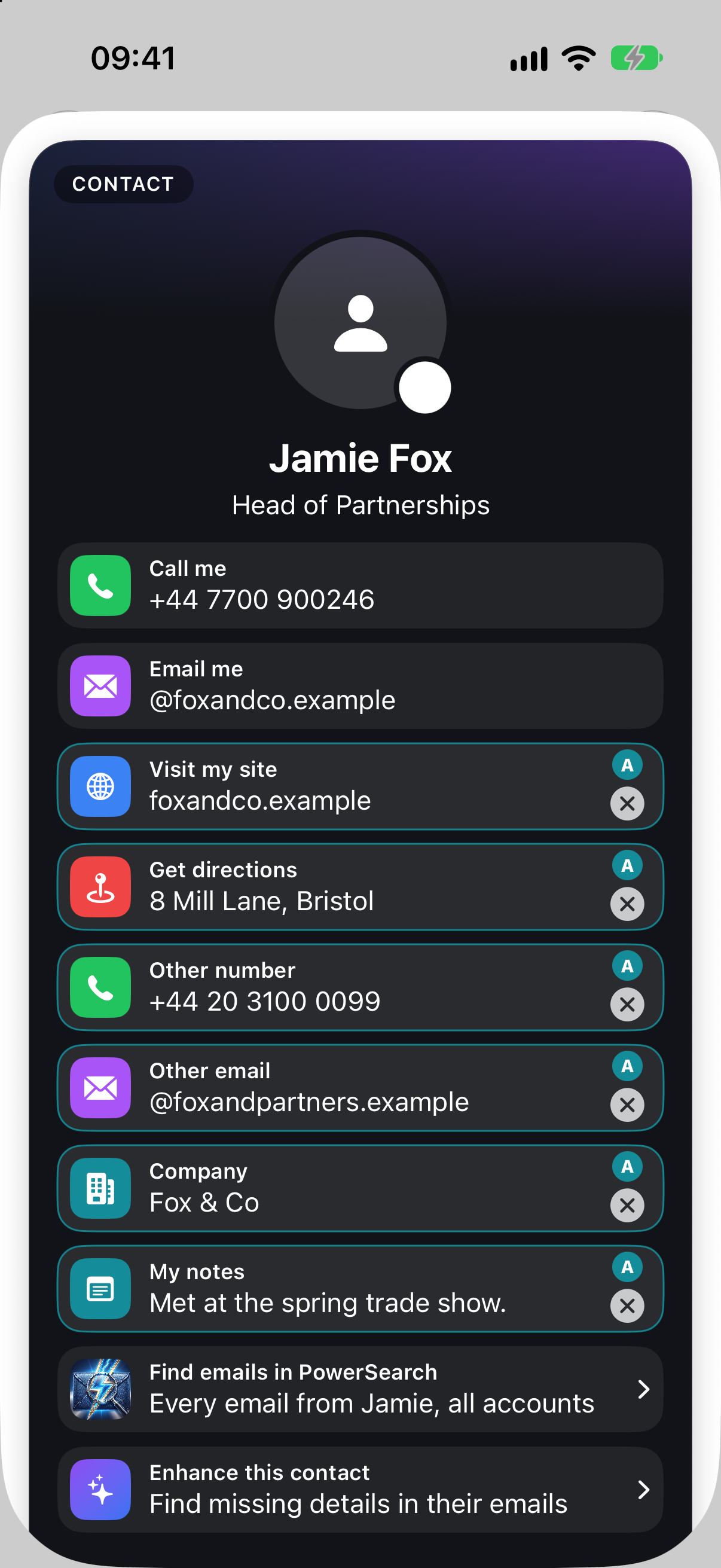
Open a contact and tap Enhance this contact. PowerSearch reads the signature in their latest emails, on your phone only, and lists what it found: phone numbers, job title, company, website, address and social links. If the contact has more than one email address, all of them are checked. Tick what you want and tap Add to TapCard. It needs the PowerSearch app (free for 7 days, then a one-off purchase). What you add appears on their card marked with a small A, in the normal tiles, and you can tap an item to use it or the x to remove it. Contacts you picked from your phone get the same card, with their contact photo if they have one.
30. Scan to add someone
On My Cards, tap the camera button at the top left and scan someone's TapCard QR code. They are added to your contacts straight away.
31. Everything in one list
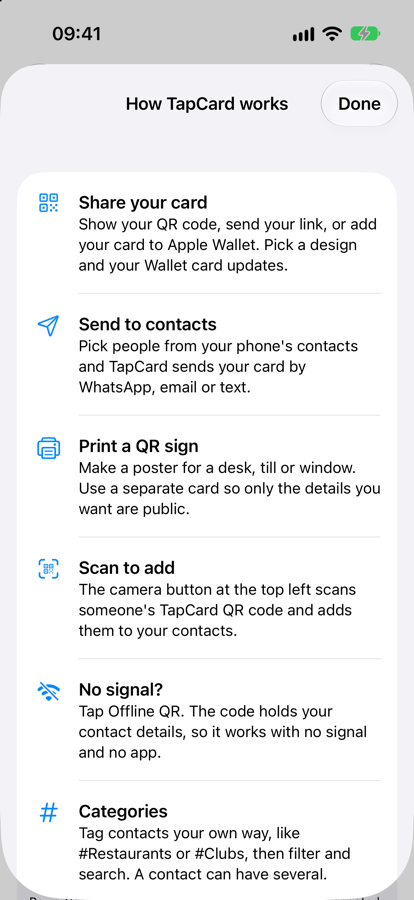
In the app, tap the … menu at the top right, then How TapCard works, for a short list of everything TapCard can do.